
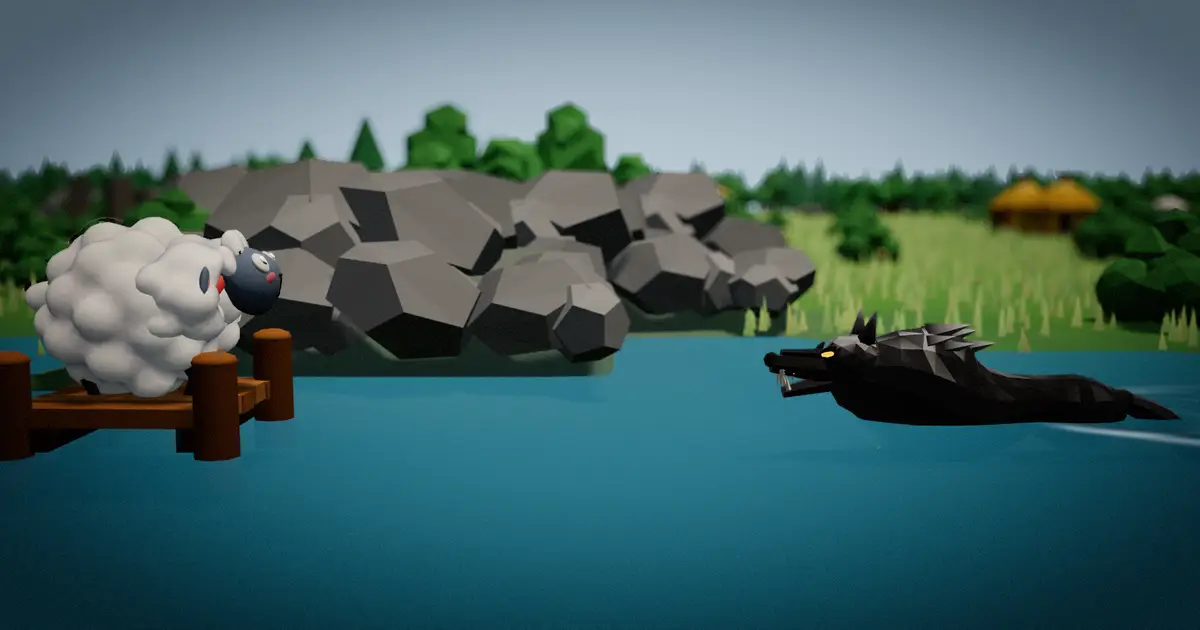
Walk with W A S D or right-click. Your abilities are Space, E, R and F. Sheep build with the number keys, wolves shop with Z, X and C. On a phone, drag anywhere to walk. Every key can be changed in Settings.
Every default key
These are the keys a new player starts with. Sheep and wolves never use each other's keys, so a few keys do one thing for a sheep and another for a wolf: X demolishes a sheep's farm and buys a wolf Swift Paws.
Moving and the camera
- W A S D
- Walk. Or right-click the ground
- V
- Recenter camera
- Tab
- Scoreboard, while you hold it
- G
- Ping wheel: pick with 1 to 4 or a click
Abilities
- Space
- Leap (sheep), Sprint (Wolf), Torch (Shepherd)
- E
- Shear (sheep), Huff and Puff (Wolf and Shepherd)
- R
- Snare (sheep), Howl (Wolf and Shepherd)
- F
- Watchtower (sheep), Watcher Ward (Wolf and Shepherd)
- T
- Sheep's Clothing (Wolf)
Building, as a sheep
- 1
- Hay Block
- 2
- Straw House
- 3
- Stick House
- 4
- Brick House
- 5
- Hedgerow
- 6
- Big Barn
- 7
- Windmill
- 8
- Beehive
- 9
- Shadow Shed
- 0
- Scarecrow
- B
- Plank Bridge
- C
- Wool Wall, from a wool bale
- U
- Upgrade the farm you point at
- X
- Demolish your farm you point at, for half its gold back
- Z
- Buy Long Reach
The wolves’ shop
- Z
- Iron Claws, 40 gold for the first level
- X
- Swift Paws, 80 gold
- C
- Potion of Strength, 25 gold
No mouse
- Enter
- Build in front of you
- T
- Turn the build spot
- H
- Go to the HUD buttons, then Tab between them
- Esc
- Menu and pause
Played before 5 October 2026? Leap used to be on Q and Recenter on Space. If you never changed them, they moved for you, and pressing Q in a match tells you where Leap went. Keys you picked yourself stay where you put them.
What the mouse does
- Right-click the ground to walk there. Hold the keys instead if you like; both work at once.
- Leap and the Torch aim at your cursor. Point where you want to land, then press Space. A sheep jumps up to 3.4 tiles that way, clean over farms.
- As a sheep, pick a farm with its number key and click to place it. Click further away and your sheep walks there and builds it. A click on a new spot replaces the one you picked; Shift+click adds it to a line, so you can plan a whole wall.
- As a wolf, right-click a farm to chew it, and run into a sheep to tag it.
- Point at one of your farms and a card shows the next upgrade and its price. Press U or click Upgrade. Click the farm to keep the card up.
- The scroll wheel zooms. V brings the camera back to your animal.
On a phone

- Drag a finger anywhere on the field to walk. A quick tap walks to that spot, and a wolf taps a farm to chew it.
- Your abilities are the round buttons in the bottom-right corner. Tap one to use it, or hold it to read what it does.
- Build from the tray. Tap a farm to pick it, drag on the field to aim and lift to place. Or drag a farm straight out of the tray. A spot that won't take it turns red and the hint says why.
- While a farm is in hand, a stick in the corner lets one thumb walk while the other aims.
- Tap your own farm, or hold it, to upgrade or demolish it.
- Pinch to zoom and drag two fingers to pan. The menu button at the top pauses the game, and so does your phone's back button.
- Left-handed? Settings, Accessibility, Controls on the left moves the buttons and the tray to the left side.
A phone and a laptop can play in the same room.
Lost signal? In an online room the game reconnects by itself and holds your seat while it tries; in a match, a bot plays it until you are back. If the page reloads, you go straight back to your seat.
Playing without a mouse
A sheep can play a whole round on the keyboard alone, so a trackpad, a broken mouse or a screen reader is no problem:
- Walk with W A S D, pick a farm with its number key, and press Enter to build it right beside your sheep.
- T turns the build spot to the next side of your sheep (Shift+T turns it back), so you can wall yourself in without moving. Shift+Enter adds a farm to the line instead of building it now.
- H jumps to the buttons along the bottom, and Tab steps between them. Esc opens the menu.
- Once you have used the build spot, Leap and pings aim toward it too, until you move the mouse again.
Menus and buttons have names for screen readers, and the kill feed and the clock's last seconds are read out.
Pinging your team
Press G where you point and a wheel opens. A sheep can send “Wolf here”, “Help, I'm in the pen”, “Wall breach”, “On my way” and “Look here”. A wolf can send “Sheep here”, “Need help here”, “Weak wall”, “On my way” and “Look here”. Pick one with a click, and only your own team sees it. A sheep that has been tagged can still ping from the pen, which is what "Help, I'm in the pen" is for.
On a phone, hold a finger still on the field, slide toward a ping and lift to send it.
To show your team a spot without the wheel, Alt+click the field or the minimap (Option+click on a Mac), or tap the minimap on a phone. It says Look here, and it counts toward the same limit of 3 pings in 5 seconds. Where Alt+click moves the window instead (some Linux desktops), press G and then Enter: the wheel opens on Look here, in its middle.
How to change a key
- Open Settings with the gear at the top of the menu, or press Esc in a match.
- Under Controls, choose the action, then press the key you want.
- Taking a key another action uses swaps the two, so nothing is ever left without a key. Reset controls puts every key back.
My pick if you play on a laptop trackpad: leave Leap on Space, since your thumb is already on it, and move nothing else until a round tells you to.
Sound and comfort
- Volume: the speaker button in the top right of every screen outside a match (the menu, the lobby, the results) sets the volume or mutes all sound without opening Settings. In a match it is in the pause menu's Settings. It is the same Master volume as in Settings, and new players start at 75%. Effects and music have their own sliders in Settings.
- Motion: Reduced stops the camera shaking and swooping and calms flashing and blinking.
- Game speed: in a game against bots, 75% slows the whole match, the clock included, so there is more time to react.
- Interface size: buttons and text from 100% up to 200%.
Every setting, with what it does: accessibility on How to play.
Hands on the keys.
Play free